Organizer Dialog
The Organizer dialog includes a Search panel that incorporates a number of options for locating projects and data, a Project list panel that lists found and pinned projects, as well as a left sidebar that lists Starred and Recent projects, project tags, and lets you access the Settings dialog.
Choose File > Open the Organizer on the menu bar to open the Organizer dialog, as shown below.
Organizer dialog
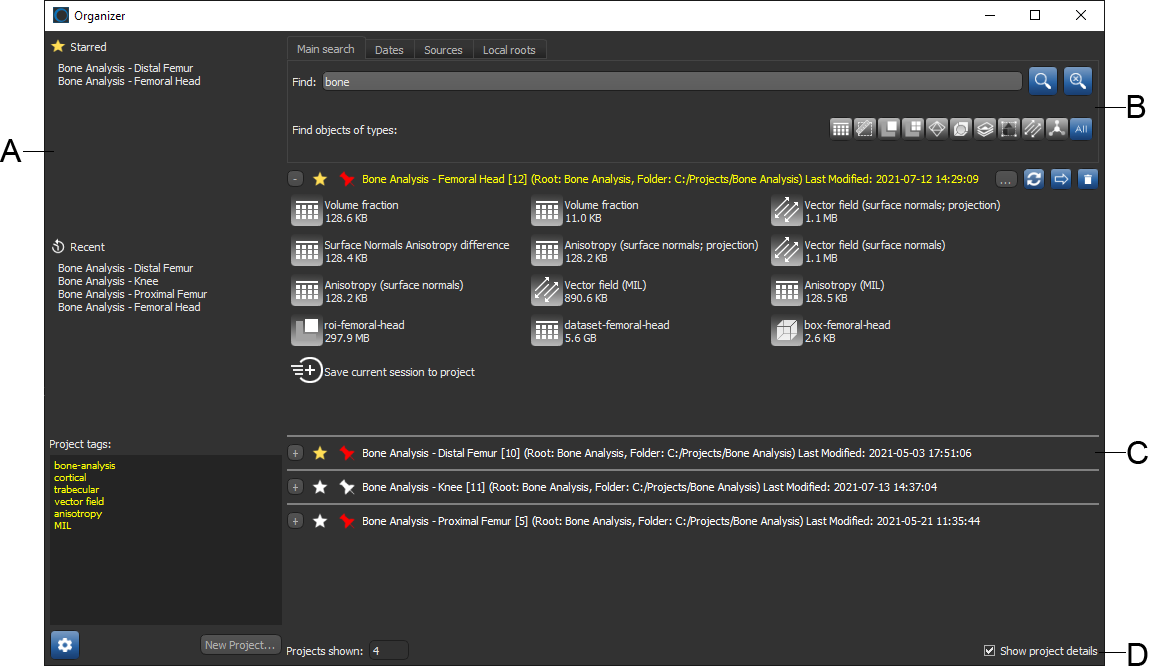
A. Left sidebar B. Search panel C. Project list panel D. Status bar
 Left Sidebar
The Organizer dialog includes a left sidebar that lists Starred and Recent projects, project and item tags, and lets you access the Settings dialog and create a new project.
Starred… All 'Starred' projects appear in this easy-to-access list.
Recent… Recently accessed projects are listed here. If required, you clear the list by right-clicking and then choosing Clear Recent List. The maximum number of projects that appear in the list can be set as a preference (see Organizer Preferences).
Tags… Displays the tags that were added to the currently selected project (Project tags) or to the selected object (Item tags). See Setting Up Project Tags and Adding Project and Item Tags
Settings… Opens the Organizer Settings dialog, in which you can customize the size of project items, choose a database location, setup mandatory and optional project tags, enable sharing, and rebuild the database (see Organizer Settings).
New Project… Opens the Create a Project dialog, in which you can setup a new project (see Creating New Projects).
Search Panel
Multiple search criteria are available on the Search panel to help you locate projects and associated data on local and remote servers (see Searching for Projects).
Project List Panel
All pinned projects, as well as projects that match the current search criteria, appear in the Project list panel. You should note that each project can be expanded to view the available data or collapsed to maximize space in the dialog, as shown below.
Project List panel
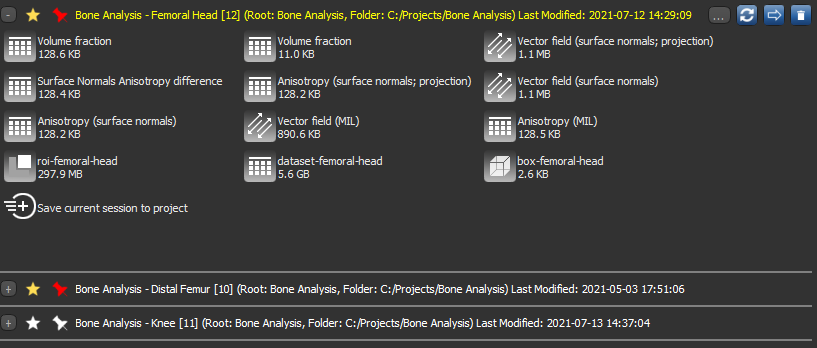
The options available for listed projects are summarized below.
|
|
Icon |
Description |
|---|---|---|
|
Expand/Collapse |
+/- |
Lets you expand or collapse a listed project. |
|
Starred |
|
Lets you 'star' a project. Starred projects are listed in the 'Starred' box on the left sidebar. |
|
Pinned |
|
Lets you 'pin' a project. Pinned projects will appear at the top of the Project list panel at all times. |
|
Project name (Project details) |
NA |
Indicates the name of a project. Additional information about a project, such as the root folder(s) and last modified date and time can also be shown by selecting Show project details on the bottom right of the Organizer dialog, |
|
Project Options* |
… |
Lets you access additional options for a project. Rename Project… Opens the Rename Project dialog, in which you can enter a new name for a project (see Renaming Projects). Open Folder… Opens the folder that contains the current project in Window's File Browser or in the installed file browser for Linux. |
|
Update* |
|
Automatically updates objects that are loaded in the current scene. |
|
Move* |
|
Lets you move the current project to another root folder. You can choose a new root folder in the Select a Root dialog. |
|
Delete* |
|
Lets you delete the current project (see Deleting Projects). |


* Theses items only appear when you hover over title bar a listed project.
Status Bar
Indicates the number of projects shown in the Project list and lets you show or hide the project details.


